App Store Screenshots (9)



Design Analysis
Visual Design
App Insights
About Amazon Kindle
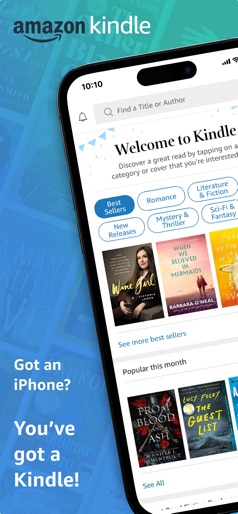
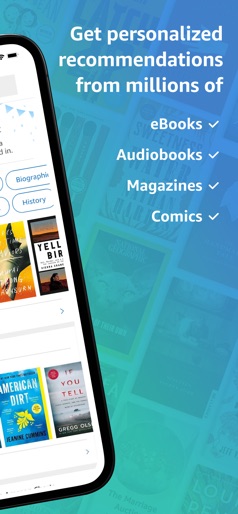
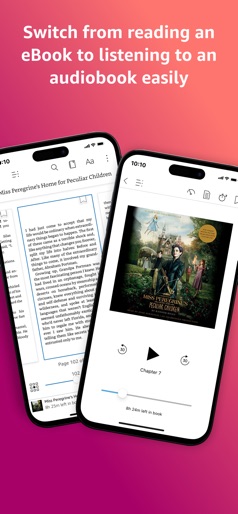
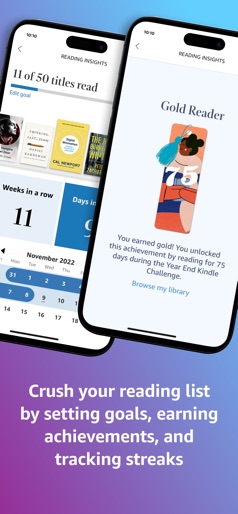
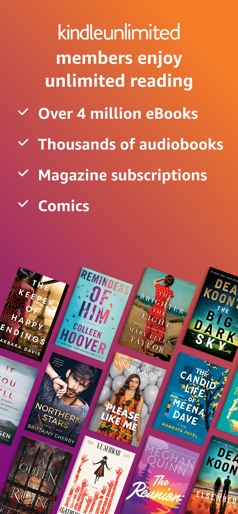
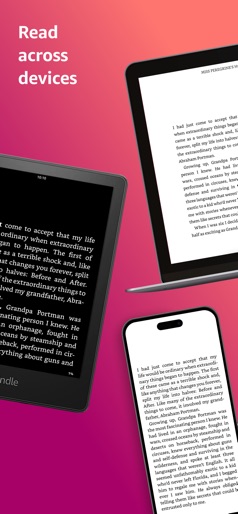
READ ANYTIME, ANYWHERE On the bus, on your break, in your bed—never be without a book. Kindle books you have purchased on Amazon will automatically appear in your app. Kindle Unlimited and Amazon Prime members can select and download Kindle books directly in the app. FIND YOUR NEXT GREAT READ • Read the books you buy on Amazon in the Kindle app. Choose from over six million Kindle books (including those with Audible narration), magazines, and comics and start reading in seconds. Explore Amazon Charts best sellers and titles across genres like romance, science fiction, children’s books, self-help, religion, nonfiction, and more—and try any book with a free sample straight from the Kindle app. • Kindle Unlimited members can enjoy unlimited reading and listening, with the freedom to explore over 1 million titles, thousands of audiobooks, and current magazines. • Over 1,000 books, magazines, comics, and more included with Amazon Prime. GO BEYOND PAPER Turn your iPhone or iPad into a book with the free Kindle app—so you can read anytime, anywhere. Explore these reading features in the Kindle app: • Read your way. Customize your text size, font type, margins, text alignment, and orientation (portrait or landscape)—and choose whether to turn pages from left to right or continuously scroll. Read comfortably day and night with adjustable brightness and background colors. Go to the Aa menu in your book to get started. • Look up words, people, and places while you read. Breeze through words you don’t know and characters you can’t remember with the built-in dictionary, X-Ray, Wikipedia lookup, instant translations, and search within your book. Simply tap and hold a word to view its definition, or use the Google and Wikipedia links to get more information. • Track your reading progress. See what percent of the book you’ve read, real page numbers (for most top titles), and how much time you have left in the chapter or book based on your actual reading speed. • Bookmark places you want to revisit, and make highlights and take notes throughout your book. Open My Notebook to see all your notes in the same place. • Hop, skim, and jump with Page Flip. Flip between pages or get a bird’s-eye view of your book with Page Flip—don’t worry, we’ll save your place. • Zoom in on high-definition color images in Kindle books, magazines, comics, and manga. • Sync your books across devices. When you’re reading a book, the Kindle app will automatically sync where you left off—along with any bookmarks, highlights, or notes—so you can start reading on one device and pick up where you left off on another. • When you can’t read, listen. Switch seamlessly from reading your Kindle book to listening to the Audible book, all within the Kindle app. • Get notified when authors you love have new releases. By using this app, you agree to Amazon’s Conditions of Use (www.amazon.com/conditionsofuse) and Privacy Notice (www.amazon.com/privacy).
Create screenshots like Amazon Kindle
Use FlyerBanana's free editor to create professional App Store screenshots inspired by Amazon Kindle's design. 100+ templates, device frames, and one-click export.
More Books Apps
View all
Audible: Audiobooks & Podcasts
Books


Epic - Kids' Books & Reading
Books

English Dictionary - Offline
Books

Dictionary - Merriam-Webster
Books
Pocket FM: Audio Series
Books


Galatea: Books & Audiobooks
Books