
App Store Screenshots (10)



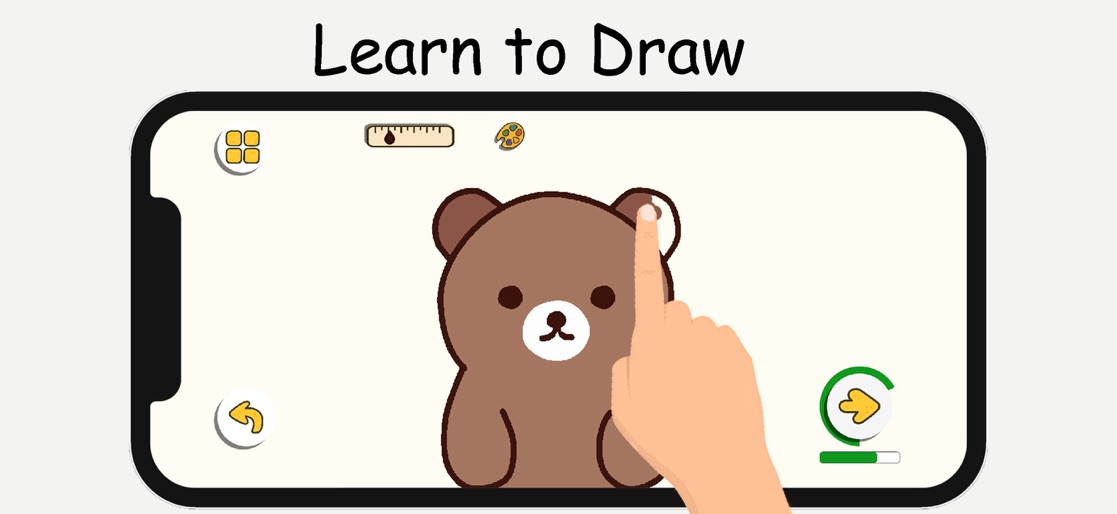


Design Analysis
Visual Design
App Insights
About ArtLoop: Learn how to draw
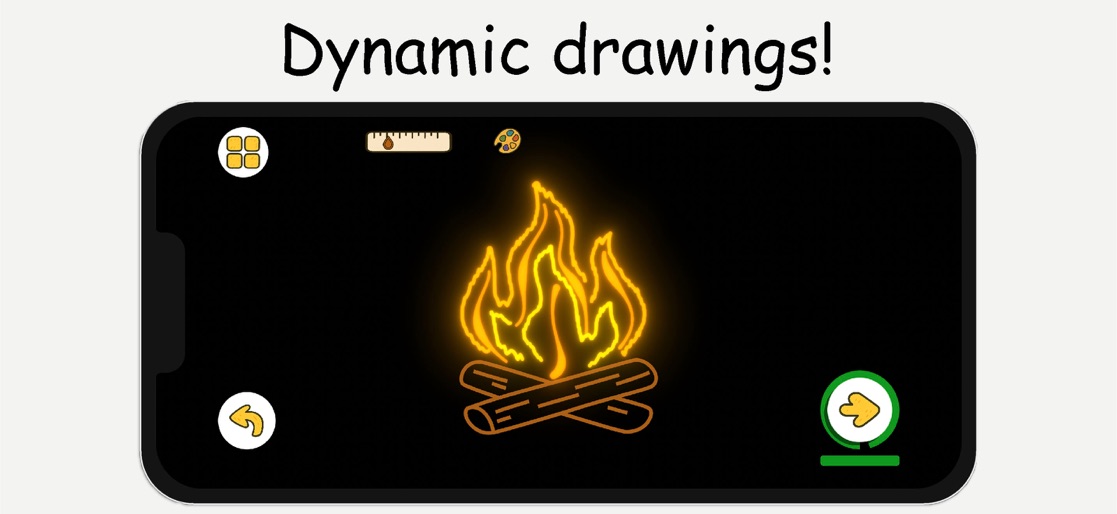
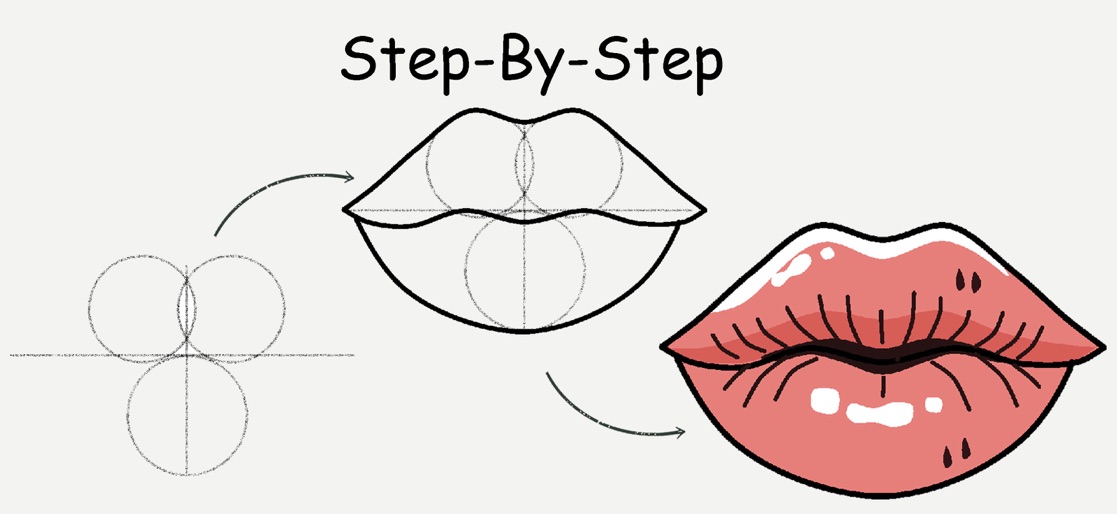
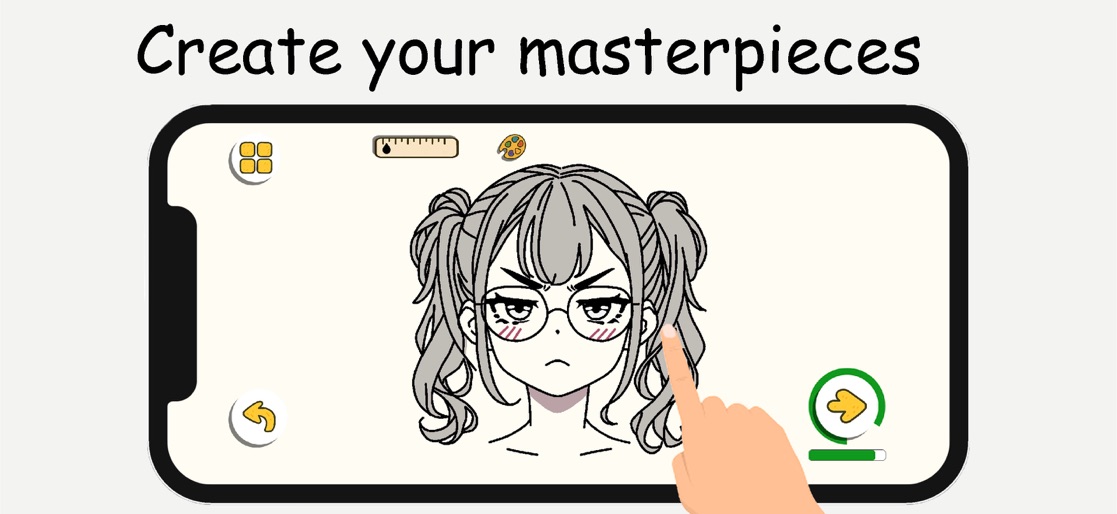
Draw anywhere, anytime! Learn step-by-step with fun tutorials. Test your skills in Art Battle and compete with friends! Unlock Your Artistic Potential with Our Drawing App! Discover ArtLoop – a playful drawing game where learning to draw happens through fun, challenges and experiments, not boring lessons. From calm step-by-step tutorials to fast multiplayer battles, ArtLoop turns your screen into a creative playground for any skill level. Draw in Different Styles: Follow clear, step-by-step tutorials to draw characters, objects, food, animals and more. Explore a wide variety of styles: from simple doodles and cute cartoons to more detailed illustrations. Practice at your own pace – repeat drawings, try new colors and build your own gallery of finished artworks. Pixel Art & Neon Glow: Pixel Art Mode – create retro-style pictures pixel by pixel, like a tiny digital mosaic. Neon & Glow Drawings – draw with bright glowing lines on a dark canvas. Experiment with different looks and turn simple sketches into bold, stylized art. Dynamic Drawing Modes: Use dynamic brushes with animated strokes that wobble, pulse and move, making your lines feel alive. Combine classic drawing with playful effects so every sketch feels fresh and satisfying. Draw Rush – Speed & Precision: In Draw Rush, you copy simple shapes and lines as quickly and accurately as you can. Race against the timer, focus on precision and try to beat your own score in short, intense rounds. Great for quick drawing challenges when you only have a few minutes. Art Battle: Join Art Battle and compete in drawing challenges with friends! It’s all about fun, creativity and friendly competition – not about being “perfect”. Fun Challenges, Not Stressful Lessons: No strict rules, no pressure – just a safe space to experiment and enjoy drawing. No prior art skills needed: simple guidance helps you start, and varied modes keep you motivated. User-Friendly Interface: Enjoy a clean, intuitive interface that keeps the focus on your drawing, not on menus. The drawing pad is comfortable for both finger and stylus, so you can relax and focus on your lines, colors and ideas. Paint Offline Keep drawing even when you’re offline. Most tutorials and practice modes work without an internet connection, so you can sketch on a trip, in a café or anywhere else. For Anyone Who Loves to Draw (or Wants to Start) Whether you’re: a beginner taking your first steps in digital drawing, a casual doodler who wants fun challenges, or a more experienced artist looking for new styles and modes to play with, ArtLoop gives you a playful way to practice, experiment and grow your skills over time. Jump into ArtLoop today and turn everyday doodles into a fun drawing habit! Privacy Policy: https://artloop.netlify.app/privacy-policy Terms of Use (EULA): https://artloop.netlify.app/terms-of-use
Create screenshots like ArtLoop: Learn how to draw
Use FlyerBanana's free editor to create professional App Store screenshots inspired by ArtLoop: Learn how to draw's design. 100+ templates, device frames, and one-click export.
More Creative Apps
View all
Block Craft 3D:Building Game
Creative
WorldBox - Sandbox God Sim
Creative


Village City Life Building
Creative


Craft World Block Building 3D
Creative


Super City: Building Master
Creative


Block Craft World Sandbox
Creative