

Splice - Video Editor & Maker
Bending Spoons Apps ApS
Create Screenshots Like Splice - Video Editor & MakerApp Store Screenshots (7)


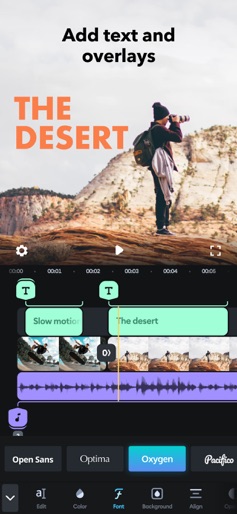
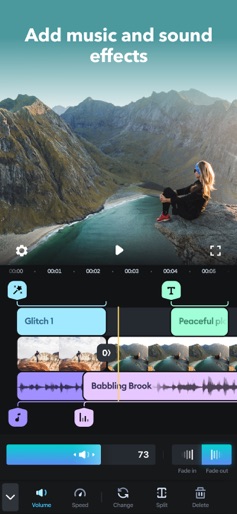


Design Analysis
Visual Design
App Insights
About Splice - Video Editor & Maker
Simple yet powerful, Splice makes it easy to create fully customized, professional-looking videos on your iPhone or iPad. Imagine the performance of a desktop editor, optimized for your mobile device. Just tap to trim clips, add slow motion effects, and overlay multiple clips to create beautiful videos you’ll love to share. It’s never been easier to edit like a pro on the go. POWERFUL EDITING TOOLS MADE SIMPLE + Trim, cut, and crop your photos and video clips. + Refine your clips by adjusting exposure, contrast, saturation, and more. + Adjust playback speed for fast or slow motion, now also with speed ramping. + Overlay photos or videos and apply masks to create incredible effects. + Remove background with Chroma Key. + Animate your clips with the Ken Burns effect. + Apply filters and adjust background colors, orientation, and more. + Add amazing effects: glitch, chroma, vintage, and lots more. + Choose your transition style and control the speed between transitions. + Add title slides, text overlays, and a custom outro. + Bring your photos to life and create slideshows with pan and zoom effects. CUSTOMIZE THE PERFECT SOUNDTRACK + Choose songs from 6,000+ royalty-free tracks from Artlist and Shutterstock libraries. + Trim and mix multiple audio tracks with precision. + Use a song from your own iTunes collection (subject to iTunes terms). + Add narration or custom sound effects with the built-in voice recorder. EASILY SHARE + SAVE YOUR VIDEO + Share right to YouTube, Instagram, TikTok, Facebook, Mail, Messages, and more. + Save videos to your camera roll. SUBSCRIPTION INFO: Subscribe to take advantage of the features described above. • Subscription length: weekly, monthly, yearly • Your payment will be charged to your iTunes Account as soon as you confirm your purchase. • You can manage your subscriptions and turn off auto-renewal from your Account Settings after the purchase. • Your subscription will renew automatically, unless you turn off auto-renew at least 24 hours before the end of the current period. • The cost of renewal will be charged to your account in the 24 hours prior to the end of the current period. • When canceling a subscription, your subscription will stay active until the end of the period. Auto-renewal will be disabled, but the current subscription will not be refunded. • Any unused portion of a free trial period, if offered, will be forfeited when purchasing a subscription.
Create screenshots like Splice - Video Editor & Maker
Use FlyerBanana's free editor to create professional App Store screenshots inspired by Splice - Video Editor & Maker's design. 100+ templates, device frames, and one-click export.
More Content Creation Apps
View all

VN - AI Video Editor
Content Creation

VLLO- Video Editor, Vlog Edits
Content Creation


Edits: Video Editor
Content Creation
Captions: AI Short-Form Video
Content Creation

LumaFusion
Content Creation
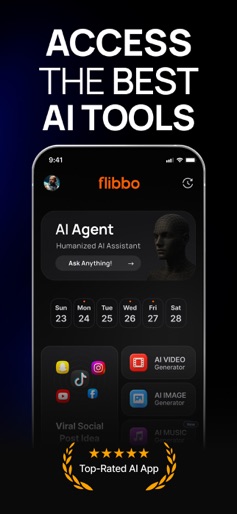
Flibbo AI - Video Image Maker
Content Creation