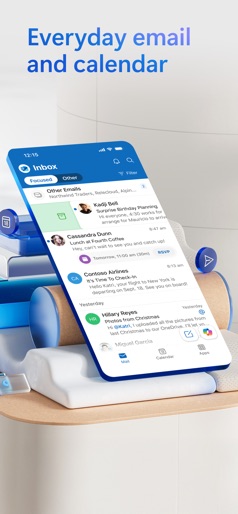

App Store Screenshots (7)


Design Analysis
Visual Design
App Insights
About Dropbox: Cloud Storage Backup
Dropbox lets you upload, save, and transfer photos and files to the cloud. Backup and sync your pictures, videos, documents, and other files to cloud storage and access them from any device, anywhere. With advanced sharing features, it’s easy to share and send photos or files to family, friends, and co-workers. Features: • Automatically upload videos and photos from your camera roll to cloud photo storage - all in the background - for easy video sharing and photo sharing. • Access any file in your account - even offline - and preview over 175 different file types with no special software required. • Easily send large files by copying and pasting a link you can give to anyone, even if they don’t have a Dropbox account. • Scan documents, receipts, IDs, photos, and more using your mobile device and transform them into high-quality PDFs, so you can view and send anywhere. • Sync folders on your PC or Mac to Dropbox with computer backup, and recover older versions or restore deleted files with version history and file recovery. Sign up now for your free Dropbox Plus trial. You’ll get 2 TB (2,000 GB) of storage space - that’s enough room to save files from all your linked devices. And with Dropbox Rewind, you can roll back any file, folder, or your entire account, up to 30 days. Before starting a trial or completing payment, you’ll see the plan price. This amount will be charged to your Apple ID account at confirmation of purchase and on renewal and will vary by plan and country. Dropbox subscriptions renew monthly or yearly, depending on your plan. Your account will be charged for renewal 24 hours before the end of your current billing period. To avoid auto-renewal, turn it off within at least 24 hours before your subscription renews. You can turn off auto-renewal anytime from your Apple ID account settings. You can manage and cancel your subscriptions by going to your account settings on the App Store after purchase. Dropbox is a secure cloud solutions leader trusted by Fortune 500 companies for their most sensitive data. Over 14 million paid users choose Dropbox because they know they can count on a company that’s also dedicated to their security and privacy—no matter what they do or where they are. Let Dropbox be your all-in-one file storage, file organizer, file transfer, and file sharing solution for all your devices. We’d love to hear from you! Join the Dropbox community: https://www.dropboxforum.com Terms of Service: https://www.dropbox.com/terms Privacy Policy: https://www.dropbox.com/privacy
Create screenshots like Dropbox: Cloud Storage Backup
Use FlyerBanana's free editor to create professional App Store screenshots inspired by Dropbox: Cloud Storage Backup's design. 100+ templates, device frames, and one-click export.