

App Store Screenshots (20)


Design Analysis
Visual Design
App Insights
About GPS Maps Voice Navigation
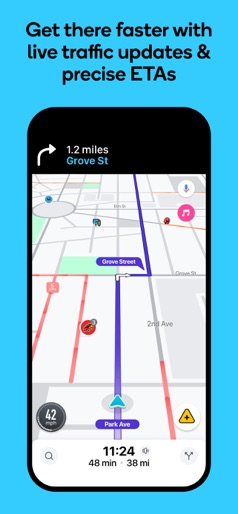
GPS Maps and Navigation App is here to provide a simple access way to your maps and locations. Find your interest in nearby places like banks, shops, restaurants, and much more. You can give your map a satellite view or start view to make it more understandable. Whether you're exploring new cities or finding the suitable routes, GPS Map & Location App is here to guide you every step of the way. Easily navigate your journey with reliable voice navigation car travel. Use the app to find nearby points of interest, like gas stations, ATMs, restaurants, and hotels. Key Features of GPS Maps Voice Navigation * Turn-by-turn GPS navigation map * GPS Route Finder helps you to find distance and travelling time * Driving directions maps with voice navigation * Street View Map Directions App easily highlights your route * Precise location with satellite map * AI Traveler Guide offers key insights and attractions for a better journey * Share your location address with friends and family to ensure safety * GPS navigation tools like weather forecast, compass,and seven wonders * Get step-by-step directions to your destination with voice-guided navigation for driving, walking, or biking. * Discover nearby places such as restaurants, gas stations, ATMs, and more around you with a tap. How to use the GPS Map App * Open the GPS Maps app by clicking on the Icon * Enable Location Services * Go to your phone settings and enable Location/GPS. * Grant location permissions to the app for accurate navigation. * Open the app. * Enter your destination in the search bar. * Choose the correct location from the suggestions. * Select the Suitable Route for you * Start Navigation * Tap Start Navigation for turn-by-turn directions. * Follow the highlighted path to reach your destination GPS navigation route finder app guides the user to find the exact direction and shortest route finder for your destination location. GPS navigation and travel guide enable the user to travel on an exact route location on a GPS map.
Create screenshots like GPS Maps Voice Navigation
Use FlyerBanana's free editor to create professional App Store screenshots inspired by GPS Maps Voice Navigation's design. 100+ templates, device frames, and one-click export.
More Maps & Navigation Apps
View all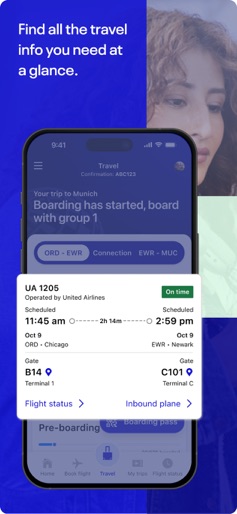

United Airlines
Maps & Navigation
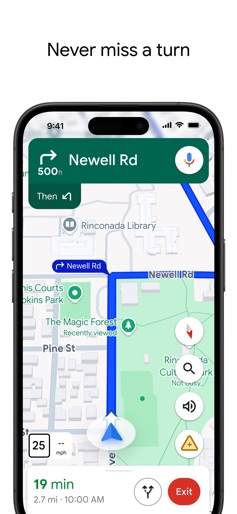
Google Maps
Maps & Navigation


Southwest Airlines: Travel App
Maps & Navigation


The Weather Channel - Radar
Maps & Navigation
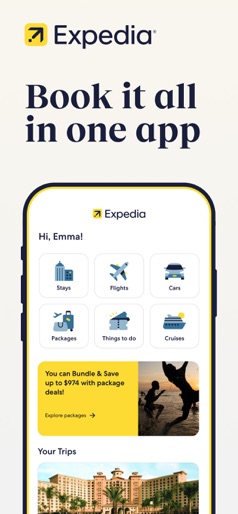

Expedia: Hotels, Flights, Cars
Maps & Navigation

Waze Navigation & Live Traffic
Maps & Navigation